
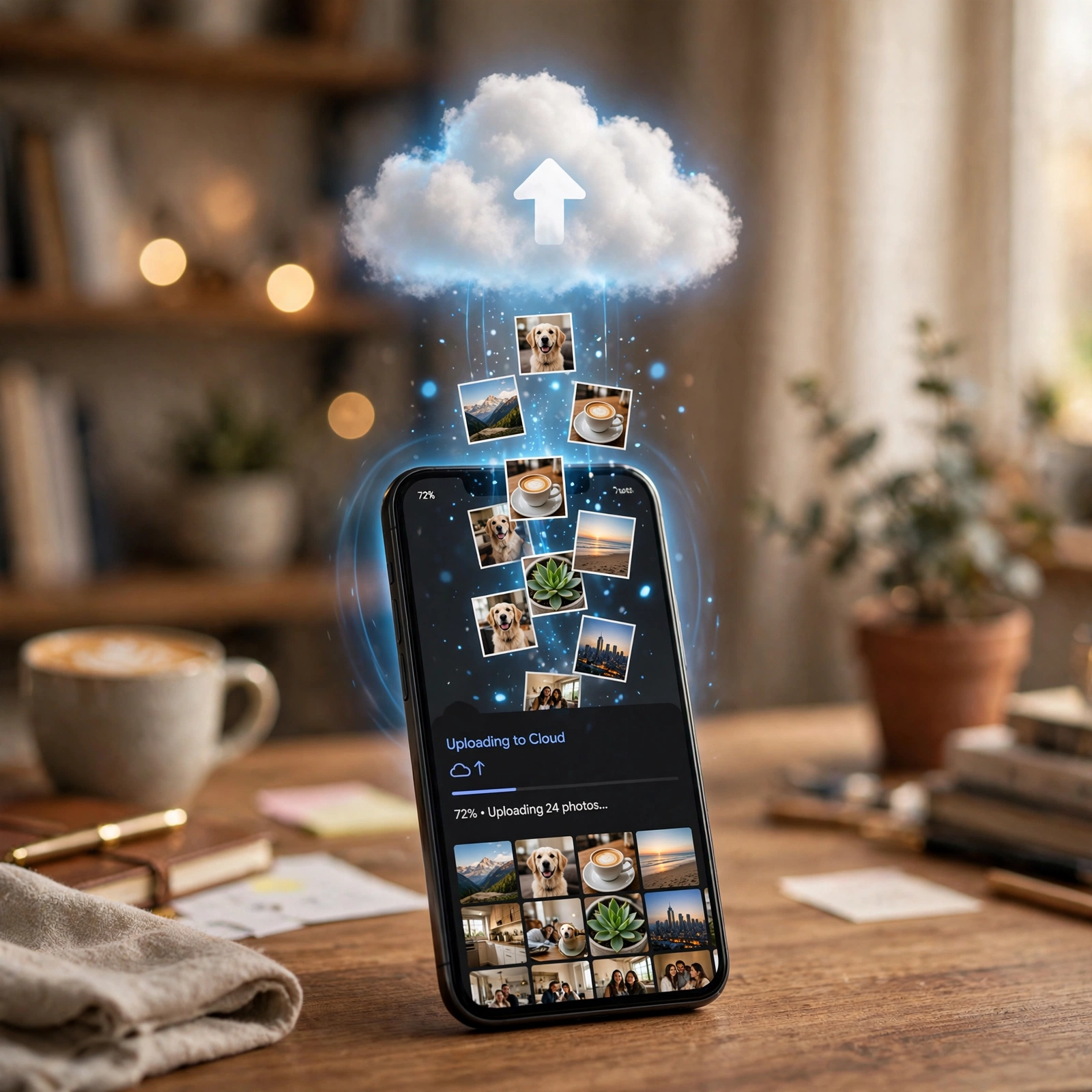

Picture this: your phone slips out of your hand onto the pavement. The screen is fine — you got lucky. But last month, a friend of mine wasn’t lucky at all. Her phone died for good, and with it went four years of photos: her daughter’s first steps, a trip to Thailand, her grandmother’s 90th birthday. She’d always meant to back them up “sometime.”
Photo backup is one of those jobs that is trivial to set up and miserable to skip. This guide shows you how to back up your phone photos automatically — once, in about ten minutes — so every picture you take lands safely in the cloud whether you remember or not.
Why Automatic Backup Beats Manual Copying
Most people “back up” photos the same way they clean the garage: in occasional, guilt-driven bursts. You plug the phone into a laptop, drag a few folders across, and tell yourself you’ll do the rest next weekend. Next weekend never comes.
Automatic backup flips that. Turn it on once, and every new photo and video uploads over Wi-Fi in the background, usually within minutes of being taken. Your pictures sit safely in your cloud account, untouched by whatever happens to the phone in your pocket.
Method 1: Google Photos (Android and iPhone)
Google Photos is the best default for most people: it works on both platforms, its free tier is the most generous of the big three, and its search is still unmatched. If you only set up one thing on this list, make it this.
Setting up automatic backup on Android
Open the Google Photos app (the colorful pinwheel icon) and sign in to the Google account you want your photos stored under. Tap your profile picture in the top right, then tap Photos settings → Backup, and switch Backup on. You can check progress anytime: tap your profile picture and look for “Backup complete” or a count of items still waiting. Google’s own backup guide walks through the same steps with screenshots.
One setting most people miss: Back up device folders. By default, Google Photos only backs up your camera roll — photos from WhatsApp, screenshots, Instagram saves, and downloads stay local. In the same Backup screen, tap it and turn on the folders you care about. WhatsApp images alone can hold hundreds of family photos that never leave your phone otherwise.
Setting up automatic backup on iPhone
Google Photos works just as well on iPhone, and it’s the easiest way to have your pictures available on Android, the web, and anywhere Google runs. Install Google Photos, sign in, then tap your profile picture → Google Photos settings → Backup and turn it on. If iOS asks for photo access, allow it under iPhone Settings → Privacy → Photos. One quirk: iOS can suspend apps in the background, so keep the Photos app open until the first backup finishes — after that, each new photo goes up in seconds.
Storage Saver vs Original quality — the choice that decides your free-tier math
During setup you’ll be asked to pick a backup quality. Storage Saver compresses photos larger than 16 megapixels down to 16 MP and shrinks videos above 1080p to 1080p. Original quality keeps every pixel untouched. Both now count against your Google account storage; Storage Saver simply uses much less of it.
Here’s the honest take: for phone photos viewed on screens and printed up to about 8×10, most people cannot tell Storage Saver from Original. Pick Storage Saver and your 15 GB of free space stretches far further. Choose Original only if you shoot RAW or sell prints — and then budget for a paid Google One plan.
Wi-Fi only or mobile data — control the phone bill
By default, Google Photos backs up over Wi-Fi only. That’s the setting most people should keep: your photos can wait until you get home. If you’re on an unlimited plan and want faster uploads, you can allow mobile data under Backup → Mobile data usage, with an option to set a daily cap. Leave Wi-Fi-only on if data limits worry you at all — the backup politely waits.
Method 2: iCloud Photos (iPhone)
If you live entirely inside Apple’s world, iCloud Photos is the smoothest option. It doesn’t just back up — it syncs your whole library across iPhone, iPad, and Mac, and you can browse everything at iCloud.com from any computer.
Turning on iCloud Photos
Open Settings, tap your name at the top, then tap iCloud → Photos and switch on Sync this iPhone. (On some iOS versions the label still reads “iCloud Photos” — same job.) Keep the phone on Wi-Fi and power for the first sync, and open the Photos app and scroll to the bottom of the Library view to watch the upload status. The first sync can take hours or even days for a big library; every photo after that uploads automatically.
Optimize iPhone Storage vs Download and Keep Originals
Two options sit under the sync toggle. Optimize iPhone Storage keeps small, device-friendly versions on the phone and stores the full-resolution originals in iCloud — the right choice if your iPhone storage is tight. Download and Keep Originals keeps full-resolution files on the phone too, eating far more local space. For a backup setup, Optimize is almost always the right pick: your originals live safely in the cloud either way.
The 5 GB problem — when to pay for iCloud+
Here’s the catch nobody tells new iPhone owners: every Apple Account starts with just 5 GB of iCloud storage, and that 5 GB covers photos, device backups, messages, and iCloud Drive combined. A single year of photos fills it.
The practical fix is iCloud+: 50 GB costs $0.99 a month and comfortably holds years of photos; 200 GB is $2.99 a month and 2 TB is $9.99 a month (US pricing — it varies by country). Less than the price of a coffee, per month, for never worrying about this again.
Method 3: OneDrive Camera Upload
OneDrive is the sleeper pick — especially if you already pay for Microsoft 365, which includes a terabyte of storage. The OneDrive mobile app can automatically back up your camera roll: open the app, sign in with your Microsoft account, go to settings and turn on Camera Upload. Your photos land in the Camera Roll folder of your OneDrive, accessible from your PC, the web, and any signed-in device. Microsoft’s OneDrive photo page has the full walkthrough.
But the math changes with a Microsoft 365 subscription: Basic ($19.99 a year) adds 100 GB and Personal ($99.99 a year) includes a full 1 TB — automatic photo backup then costs nothing extra.
Free-Tier Math: What “Free” Actually Fits
The free tiers are real, but they have hard limits worth knowing before you choose. Google Photos gives every account 15 GB shared across Photos, Gmail, and Drive — the most generous free tier of the three, and enough for several years of phone photos on Storage Saver quality. iCloud’s 5 GB and OneDrive’s 5 GB will fill up within months of active photo-taking once device backups and files join the picture.
Roughly speaking: an average smartphone photo is 3–5 MB, so 15 GB holds around 3,000–5,000 photos — though emails and files share that same space. When the free tier fills, new backups stop and you either clear space or upgrade. If you back up your WordPress site to Google Drive or store videos in iCloud, remember those eat the same pool of space your photos need.
The 3-2-1 Rule for Your Memories
One cloud backup is enormously better than zero, but the gold standard in backup has a name: the 3-2-1 rule, popularized by photographer Peter Krogh. As Backblaze’s guide explains, it says: keep 3 copies of your data, on 2 different types of storage, with 1 copy offsite.
Copy one: the phone in your pocket
This is the original — the photos living on your device right now. It counts as a copy, but it’s the most fragile one: phones get lost, dropped, and stolen. Never let this be your only copy.
Copy two: the cloud backup you just set up
This is the automatic upload you configured above — Google Photos, iCloud Photos, or OneDrive. It’s your offsite copy and your daily safety net. But clouds have failure modes too: accounts get locked, subscriptions lapse, and a syncing service can propagate a deletion across every device.
Copy three: the one nobody thinks of
Once or twice a year, export your library somewhere else: an external hard drive, a computer folder, or a second cloud service. Google Takeout lets you download your entire Google Photos library in one go. Three copies is the rule for a reason — it’s the setup that survives the one disaster you didn’t plan for.
When the Backup Gets Stuck: Common Problems
“Backup is off” or stuck on “Waiting for Wi-Fi”
Open Google Photos and tap your profile picture — the status message tells you exactly what’s wrong. “Backup is off” means the toggle got switched somewhere along the way; turn it back on. “Waiting for Wi-Fi” means the app is politely holding your photos until you’re home — connect, or change the setting if you’d rather use mobile data. On iPhone, a stalled first backup usually just needs the app left open and the phone plugged in.
Storage full: the honest cleanup order
When the free tier fills, don’t start by deleting photos — that defeats the purpose. First check what’s actually eating space: Google’s storage page shows the split between Photos, Gmail, and Drive, and iPhone Settings → your name → iCloud shows the same for Apple. Large Gmail attachments and forgotten Drive videos are often the real culprits. Delete those, then use Google Photos’ “Free up space” to remove already-backed-up local copies. The same storage-triage logic helps a computer too — these 10 fixes walk through how to speed up a slow laptop when its drive is full.
The 10-Minute Setup Checklist
Open your phone and do this now:
- Turn on automatic backup. Google Photos: profile picture → Photos settings → Backup → on. iPhone-only: Settings → your name → iCloud → Photos → Sync this iPhone.
- Choose Storage Saver (Google Photos) or Optimize iPhone Storage (iCloud) — the free-tier-friendly options.
- Keep Wi-Fi-only uploads on unless your data plan is truly unlimited.
- Turn on Back up device folders in Google Photos so WhatsApp photos and screenshots are included.
- Check the storage math. Know your free tier (15 GB Google, 5 GB iCloud/OneDrive) and upgrade for a dollar or two a month before it fills, not after.
- Schedule copy three. Put a twice-yearly reminder on your calendar to export your library to an external drive. That’s the 3-2-1 rule, done.
Does Google Photos backup cost money?
No — every Google account gets 15 GB of free storage shared across Google Photos, Gmail, and Drive. Automatic backup works free until that fills up; after that you can upgrade to a Google One plan (100 GB starts around $1.99/month) or clear space instead.
Will automatic photo backup use up all my mobile data?
Not by default. Google Photos backs up over Wi-Fi only unless you allow mobile data, and iCloud Photos uploads over Wi-Fi too. Keep the Wi-Fi-only setting on and your photos will simply wait until you get home.
What happens to my photos if I stop paying for iCloud+ or Google One?
Your existing photos stay in your account — nothing is deleted. New uploads stop until you’re back under the free limit, so download what you need and either free space or resubscribe.
Is iCloud Photos enough as a backup, or do I need something else?
iCloud Photos is a sync service, not a true backup: delete a photo on your iPhone and it disappears from iCloud and all synced devices too. For real protection, follow the 3-2-1 rule — a second copy somewhere else, like Google Photos or an external drive.
How do I automatically back up WhatsApp photos and screenshots too?
In Google Photos, go to your profile picture → Photos settings → Backup → Back up device folders and turn on the folders you want, like WhatsApp Images, Screenshots, and Downloads. They’re skipped by default.
