
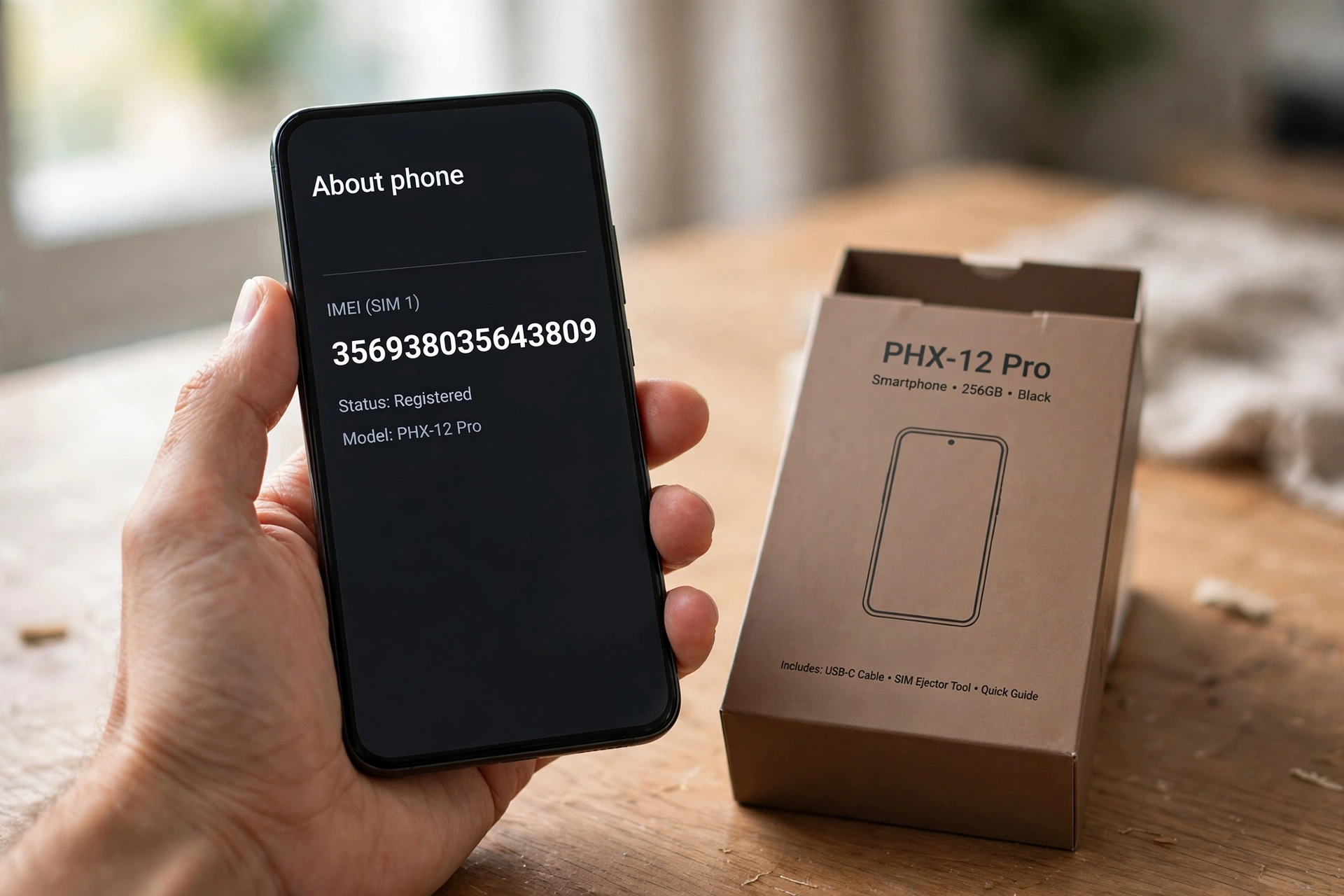

Every phone has a fingerprint, and it is fifteen digits long. That number is the IMEI. Finding it takes about a minute, and it is the number you need when you buy a used phone, report one stolen, or check whether a handset is locked to a network.
The fastest way to see yours: open the Phone app and dial *#06#. The number appears on screen straight away. No call is placed, no SIM is needed, and it works on almost every phone ever made. The rest of this guide covers the other ways to find it, what an IMEI check actually tells you, and the checks to run before you hand over money for a used phone.
What Is an IMEI Number?
IMEI stands for International Mobile Equipment Identity. It is a unique 15-digit code that identifies your phone itself — not your SIM card, not your phone number, and not your account. Swap the SIM, reset the phone, change networks: the IMEI stays the same, because it belongs to the hardware.
The fifteen digits have a structure. The first eight are the Type Allocation Code, which identifies the model — every phone of the same model shares them. The next six are the serial number, unique to your individual handset. The last digit is a check digit, calculated with the Luhn formula, so a mistyped digit usually fails validation instead of pulling up someone else’s phone.
Dual-SIM phones carry two IMEIs, one for each SIM slot. Both are real, and both matter — one slot can be registered and clean while the other is blocked. If you ever check or report a dual-SIM phone, check both numbers.
IMEI vs MEID vs EID vs serial number
These four get mixed up constantly, so here is the short version. The IMEI is the phone’s 15-digit network identity. The MEID is the same idea for older CDMA networks — on many phones it is simply the IMEI with the last digit removed, 14 digits instead of 15. The EID is the number of the eSIM chip inside the phone, not the phone itself. And the serial number is the manufacturer’s own identifier, used for warranty and support. When a form asks for an IMEI, give the number labelled IMEI, not the serial number.
How to Find Your IMEI Number
There are five reliable ways. Start with the first — it takes five seconds.
Method 1: Dial *#06#
Open the Phone app, type *#06# on the keypad, and the IMEI appears immediately. You do not need to press call, and it works with no signal and no SIM card in the phone. On a dual-SIM phone you will see both IMEIs, and on newer phones the screen may also show the EID.
One caveat, mostly for Samsung owners: the code only works where the carrier supports it. If nothing appears, move on to the Settings method below — the number is still there.
Method 2: On iPhone — Settings > General > About
Open Settings, tap General, then About. Scroll down and you will find the IMEI, along with the serial number, the EID and the ICCID. Touch and hold the IMEI to copy it — handy when you need to paste it into a support form or a checker. That is Apple’s own recommended route.
On some iPhone models the IMEI is also engraved on the SIM tray, and on older models it is printed on the back of the phone. iPhone 14 and later models have no IMEI engraved anywhere on the device, so Settings or the dial code are the way to go. If the phone will not turn on, connect it to a computer and look in the Finder app on a Mac, or the Apple Devices app or iTunes on a PC.
Method 3: On Samsung — Settings > About phone
Open Settings, scroll to the bottom and tap About phone. The IMEI is listed there with the model name and serial number; on some models you need to tap Status or IMEI information first. Samsung also lists it in the Samsung Members app, under the Support tab, and on the back panel of many Galaxy models, printed in small text near the bottom.
That is the official Samsung route, and it works across the Galaxy S, Z and A ranges. If the IMEI does not show in Settings, Samsung’s own advice is to check for a software update first, then look under Status on older devices.
Method 4: On other Android phones
The path is nearly the same everywhere: Settings > About phone, then look for the IMEI entry. On some brands it sits under Status or All specs > Status. If you cannot spot it, use the search bar at the top of Settings and type “IMEI” — that works on most Android phones and saves a lot of menu-hunting.
Method 5: Without the phone in your hand
Lost the phone, or buying one and the seller “can’t find” the number? There are still ways. The original box label lists the IMEI, and so does your carrier’s account page in most cases. Google’s Find My Device shows it for registered Android phones, Samsung’s SmartThings Find shows it for Galaxy phones, and Apple’s account page lists it under Devices for every iPhone signed in to your Apple Account.
What an IMEI Check Can Tell You
Finding the number is only half the job. A check against the records can tell you four useful things.
The exact model. The first eight digits identify the model, so a check confirms the phone in front of you is the model the listing claims.
Whether it is locked to a carrier. A phone tied to one network will not work properly on another until it is unlocked.
Whether it is blacklisted. Carriers keep a shared list of phones reported lost, stolen or unpaid. A phone on that list will be blocked from their networks — exactly what you want to know before buying it.
The warranty position. Some checks show where the handset stands with the manufacturer — still under warranty, expired, or covered by an extended plan.
One honest note: free checks usually only confirm the make and model, and sometimes search public theft reports. The full blacklist and carrier-lock reports are typically paid, a few dollars per check. What matters is that you check at all, and that you check before you pay, not after.
What an IMEI Check Cannot Tell You
Just as important as what a check shows is what it does not. An IMEI check cannot tell you who owns the phone, where it is, or anything about the person who used it. It cannot track a lost phone — for that you need Find My on iPhone or Find My Device on Android, set up before the phone went missing. It cannot unlock a phone, and it cannot prove a phone is genuine on its own: a check confirms the number matches a real model, but a convincing fake can carry a copied real IMEI. For an iPhone, cross-check the serial number on Apple’s own coverage page as well. And no website can locate a phone from its IMEI alone, whatever its ads promise.
Buying a Used Phone? Run This 5-Minute Check
Most bad used-phone purchases share one feature: nobody checked the IMEI before the money changed hands. Here is the routine that catches nearly all of them.
1. Ask the seller to dial *#06# in front of you
Watch the number appear on the phone’s own screen. A screenshot can be faked; a live dial cannot. If the seller refuses, or says the code “doesn’t work on this phone”, treat that as your answer.
2. Match the number in three places
The IMEI on the screen should match the one in Settings, the one on the box, and the one on the SIM tray or back panel. If any of them disagree, the phone has had parts swapped or the box belongs to a different handset. Either way, stop there.
3. Check both IMEIs on a dual-SIM phone
One slot can be clean while the other is blocked. Check both numbers, not just the first one the phone shows you.
4. Run the blacklist and carrier check before paying
Use a reputable checker, free for the model confirmation and paid for the blacklist report if needed. A blacklisted phone is a paperweight on every major network, and no discount makes that worth it.
5. Check the lock screen locks separately
An IMEI check says nothing about Activation Lock on an iPhone or the Google account lock on an Android phone. Make sure the seller signs out of their Apple Account or Google account and removes the lock in front of you. A phone still locked to someone else’s account cannot be set up as yours, however clean its IMEI is.
If Your Phone Is Lost or Stolen
Your IMEI is the first thing to reach for. Report it to your carrier, and they can block the handset from their network — a stolen phone that cannot connect is worth far less to a thief. Report it to the police too, with the IMEI in the report; it is the one identifier that ties the handset to you. Then use Find My or Find My Device to locate, lock or erase it remotely. The sooner a stolen phone is blacklisted, the less useful it is to whoever took it — and if it ever turns up, the IMEI is how you prove it is yours.
Keep Your IMEI Private
Treat your IMEI like an account number, not a fun fact. Do not post photos of it in a sale listing, and do not share screenshots that show it. A stranger with your IMEI can file a false lost-or-stolen report, or use it to make a cloned handset look legitimate. Keep a copy somewhere safe — a note in a password manager, or a photo of the box label stored privately — and share the number only with your carrier, the police, or a support desk you trust.
That is the whole of it. Dial *#06#, write the number down, and check it before you buy. Fifteen digits, one minute, and the difference between a bargain and a brick. While you are sorting out your phone, make sure your photos are safe too — our guide to backing up your phone photos automatically sets that up on iPhone and Android in a few minutes. And if you are weighing up Apple’s latest hardware, our look at the first foldable iPhone covers what is known so far before pre-orders open.
How do I check my IMEI number?
Dial *#06# in the Phone app — the 15-digit IMEI appears instantly, with no call placed and no SIM needed. You can also find it in Settings: on iPhone go to Settings > General > About, and on Android go to Settings > About phone.
How do I check the IMEI number on a Samsung phone?
Open Settings, tap About phone, and the IMEI is listed with the model name and serial number — on some models tap Status or IMEI information first. Or dial *#06# in the Phone app, or check the Samsung Members app under Support.
How do I check an iPhone IMEI?
Go to Settings > General > About and scroll down to IMEI — touch and hold the number to copy it. You can also dial *#06#, or find it engraved on the SIM tray or back of older models. iPhone 14 and later have no IMEI engraved on the device.
Can I check if a phone is stolen by IMEI?
A blacklist check can show whether carriers have reported the phone lost, stolen or unpaid — but free checks usually only confirm the make and model, so the full blacklist report is normally a paid check. Always run it before you pay for a used phone.
Is it safe to share my IMEI number?
No — keep it private. Do not post it in sale listings or screenshots. A stranger with your IMEI could file a false lost-or-stolen report. Share it only with your carrier, the police, or a support desk you trust.
