
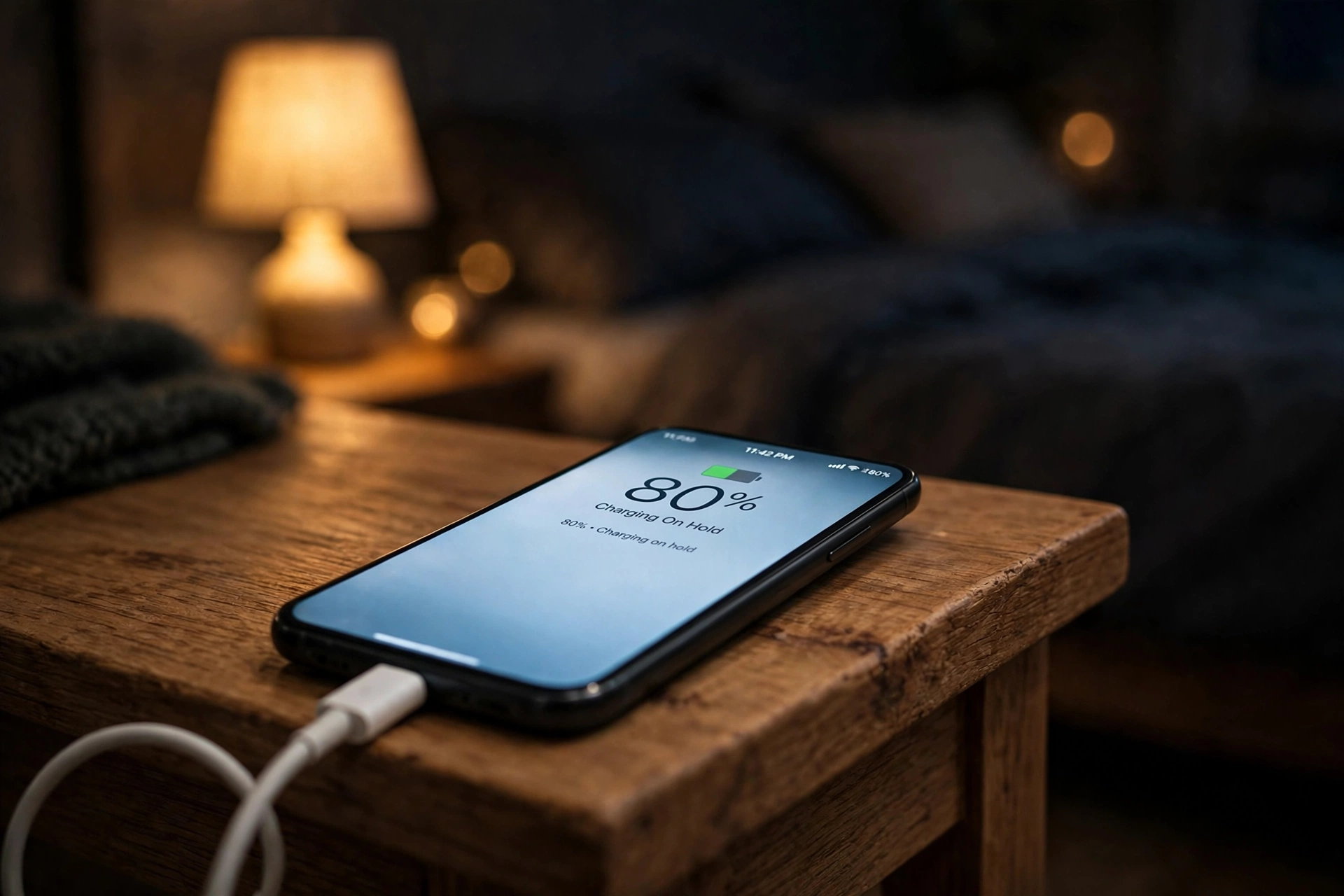

You plug your phone in at night, go to sleep, and wake up to a phone that stopped at 80%. It is not broken. It is not a faulty cable. That pause has a name: optimized battery charging.
So what does optimized battery charging mean, in plain words? It means your phone has learned your routine, and it is deliberately waiting to finish charging until just before you need it. This article explains what the feature does, why it exists, what it is called on your device, and when you should switch it off.
What Does Optimized Battery Charging Mean?
Optimized battery charging is a setting that protects your phone’s battery by changing when it charges, not how fast it charges.
Here is what happens with it on. You plug in at 11 p.m. Your phone charges at full speed to about 80%, then it stops and waits there all night. Shortly before you usually pick it up — say 7 a.m. — it tops up the last 20%, so you still wake up to 100%.
With it off, the same phone would hit 100% by midnight and sit there, plugged in and fully charged, for seven hours until morning. That long stretch at full charge is exactly what the feature is trying to avoid.
The trick is prediction. Your phone watches when you plug in and when you unplug, and it learns the pattern. The learning happens on your phone — the same kind of on-device learning that powers AI agents on modern phones — and it takes time: Apple says it needs at least 14 days, plus at least nine charges of five hours or more in the same place, before it starts working.
Why Sitting at 100% Wears Your Battery Out
Every phone battery slowly loses capacity. That part is normal and nobody can stop it. What you can change is how fast it happens — and the two things that speed it up most are heat and time spent at full charge.
A lithium-ion battery is under the most strain when it is full: at 100%, the voltage inside the cell is at its highest, and the chemical reactions that wear it down run faster. Heat makes it worse. Charging to full and unplugging five minutes later is no big deal. Charging to full at midnight and staying plugged in until 7 a.m. means seven hours at peak voltage, night after night.
The number of charge cycles is not the whole story, either. A cycle is counted every time you use up 100% of the battery’s power — one full drain, or two half-drains added together. But a battery that lives mostly between 20% and 80% lasts longer than one constantly pushed from 100% down to 0%, even with the same number of cycles. The extremes do the damage.
Optimized battery charging is built around that simple fact. It keeps your battery out of the high-stress zone for most of the night, then fills it up only when you are about to need it.
What It Is Called on Your Device
Nearly every modern phone and laptop has some version of this feature. The name changes by brand, and so does the exact menu. Here is where to find it.
iPhone
On iPhone it is called Optimized Battery Charging, around since iOS 13 and on by default. On iPhone 15 and later, go to Settings, then Battery, then Charging. On iPhone 14 and earlier, go to Settings, then Battery, then Battery Health & Charging.
iPhone 15 and later also offer a separate Charge Limit. You can pick any limit from 80% to 100% in 5% steps, and the phone simply stops there. Note the catch: optimized battery charging only works when the charge limit is set to 100%. Set a lower limit, and the adaptive feature has nothing left to do.
Mac
MacBooks have the same feature, and it is the one most people miss. It needs macOS Big Sur 11 or later: go to System Settings, then Battery, then click the info button next to Charging or Battery Health. It is on by default.
When it is holding your Mac at 80%, the battery menu in the top bar says “Charging On Hold“. On Apple silicon Macs running macOS Tahoe 26.4 or later, you can also set a Charge Limit between 80% and 100%, just like on iPhone.
iPad
iPads have Optimized Battery Charging too, under Settings, then Battery, then Battery Health. Newer models — iPad Pro with M4, iPad Air with M2, iPad mini with A17 Pro, and iPad with A16 — also offer an 80% Limit.
Google Pixel
On Pixel phones it is called Adaptive Charging, under Settings, then Battery, then Adaptive preferences. Google’s support page lays out a specific rule: plug in between 9 p.m. and 4 a.m., with an alarm set for 3 a.m. to 10 a.m., and the phone will charge slowly overnight and finish just before the alarm. Newer Pixels have started working from your usage cycle instead of needing an alarm, but the alarm rule is still the documented behaviour, and it is the one to rely on.
Samsung Galaxy
Samsung does it differently, with three modes under Settings, then Battery, then Battery protection. Basic stops charging at 100% and waits until the battery drops to 95%. Adaptive holds the charge near 80% while you sleep, then finishes before you wake. Maximum stops at 80% and never goes further. On One UI 7, Maximum lets you pick 80, 85, 90 or 95%. Older phones, below One UI 6.1, simply cap charging at 85%.
| Device | Feature name | Where to find it | What it does |
|---|---|---|---|
| iPhone | Optimized Battery Charging | Settings > Battery > Charging | Pauses at 80%, finishes before you unplug |
| Mac | Optimized Battery Charging | System Settings > Battery | Pauses at 80%, finishes before you need it |
| iPad | Optimized Battery Charging | Settings > Battery > Battery Health | Pauses at 80%; 80% Limit on newer models |
| Google Pixel | Adaptive Charging | Settings > Battery > Adaptive preferences | Slow overnight charge, done by your alarm |
| Samsung Galaxy | Battery Protection | Settings > Battery > Battery protection | Basic, Adaptive or Maximum (80%) modes |
Optimized Battery Charging vs a Fixed Charge Limit: Which Should You Pick?
On newer iPhones, Macs, iPads and Samsung phones you now have two different tools, and they solve the same problem in different ways. An adaptive feature learns your routine and still gives you 100% when you need it. A fixed limit simply never lets the battery past a number you choose.
| Optimized / Adaptive charging | Fixed charge limit (80–85%) | |
|---|---|---|
| How it works | Learns your routine, pauses at 80%, finishes before you wake | Stops at your chosen percentage, every time |
| Wake up to | 100% | 80–85% |
| Best for | Regular routines, same bedtime most nights | Shift work, irregular hours, a laptop that lives on a desk |
| Weakness | Needs weeks to learn; confused by travel and changing hours | You lose 15–20% of your daily battery |
For most people, the adaptive setting is the better default. You keep your full battery every morning and the phone does the protecting quietly in the background. Pick a fixed limit instead if your schedule changes all the time, or if your device spends most of its life plugged in — a MacBook on a desk, for example, gains little from a feature that is waiting for a wake-up time that never comes.
“Charging On Hold” on Your Lock Screen? Your Phone Isn’t Broken
The first time most people notice optimized battery charging is the morning their phone says 80% and a lock-screen message reads “Charging On Hold” with a time next to it. That message is the feature working, not a fault.
It means the phone has paused the charge on purpose and will finish by the time shown, usually just before your alarm. Need a full battery sooner? Touch and hold the notification and tap Charge Now. Turning the feature off on iPhone gives you a choice — off until tomorrow, or off for good — and “until tomorrow” is the right pick before a trip or an early start.
The same logic applies on a Mac. If the battery menu says “Charging On Hold” or “Charged to 80% Limit”, the Mac is protecting the battery on purpose. Choose “Charge to Full Now” from the same menu when you need the whole battery.
Why Optimized Battery Charging Isn’t Working
Sometimes the feature is on but nothing seems to happen. Your phone charges straight to 100% every night and never pauses. Before you decide it is broken, run through this list — every item on it comes from the manufacturers’ own support pages.
It hasn’t had time to learn yet
On iPhone, Apple says it needs at least 14 days to learn your habits, plus at least nine charges of five hours or more in the same location. A brand-new or just-reset phone simply will not do it yet — give it two weeks of regular overnight charging.
Your charging spot keeps changing
The learning is tied to place as well as time. Charge at home some nights and at a hotel others, and the phone has no steady pattern to learn. Location services need to be on, and on iPhone the Significant Locations setting under Privacy & Security helps it recognise your usual charging spot.
Your Pixel alarm isn’t set
On Pixel, the documented rule needs an alarm set for 3 a.m. to 10 a.m. and the phone plugged in between 9 p.m. and 4 a.m. No alarm, no adaptive charging — at least on the models that still follow the documented rule. If you never set alarms, this is very likely your answer.
You set a charge limit below 100%
On iPhone 15 and later, optimized battery charging only works when the charge limit is set to 100%. If you capped the charge at 85%, the adaptive feature switches off by design — the cap is already doing the protecting.
You are travelling
Travel breaks the pattern on purpose. When your iPhone is somewhere unfamiliar, it skips the optimization because it cannot predict when you will need the battery — so expect straight-to-100% charging on trips, and for a few days after you get home while it relearns.
Does It Actually Help? The Honest Answer
Yes, in the long run — but be wary of anyone who puts a precise number on it. Apple and Google both say the feature reduces wear and improves battery lifespan, and neither publishes a percentage, a number of extra months, or a capacity figure. Plenty of articles online claim it adds one or two years, or that a battery kept at 80% holds 95% of its capacity after 300 cycles. Those numbers come from blogs, not from Apple or Google, and they are not verified — so this article does not repeat them as fact.
What is solid is the mechanism. Less time at peak voltage means slower chemical wear, and that is not controversial — it is why every manufacturer ships the feature. The benefit shows up over years, not weeks. You will not notice it in a month. You may notice it in year three, when your battery health is a few points higher than a friend’s phone that charged to 100% every night.
You can watch it yourself. On iPhone, Settings, then Battery, then Battery Health shows Maximum Capacity — the percentage of charge the battery still holds compared with when it was new. On a Mac, the same number sits behind the info button in Battery settings. Looking after your phone in general — keeping it cool, not letting it sit dead for days — matters just as much as any single setting.
Should You Keep Optimized Battery Charging On?
For most people, yes. Leave it on and forget about it. If your routine is roughly the same most days — plug in at night, unplug in the morning — it costs you nothing and quietly protects the battery. The 80% pause is not a problem to fix. It is the feature doing its job.
Turn it off, or use the one-time override, when a full charge matters more than long-term battery health. That means the night before a flight, a long day away from chargers, or any morning you need to leave much earlier than usual. If your hours change constantly — shift work, for instance — a fixed charge limit will serve you better than a prediction system that never gets a steady pattern to learn from.
The same advice applies to a laptop. A MacBook that lives on a charger benefits from the same 80% hold — and a slow laptop with a tired battery is a different problem from a slow laptop with a full one, so fix the battery habit first.
Check it tonight. Plug in, wait until the battery passes 80%, and look at the lock screen. If you see “Charging On Hold” and a time, it is working. If you see nothing after two weeks of regular charging, run through the checklist above — a phone that charges to 100% while you sleep is not broken, it just has not learned your routine yet.
Is it good to leave optimized battery charging on?
For most people, yes. It slows long-term battery wear without changing your daily routine, because it still finishes charging before you usually unplug. It only becomes a problem when your schedule is unpredictable, since the feature needs a steady pattern to learn from.
Does optimized battery charging slow down charging?
Not exactly. Your phone still charges quickly to about 80%, just as it would with the feature off. It then pauses, and finishes the last 20% shortly before you normally use the device — so the charging rate is unchanged, only the timing.
Why is my phone stuck at 80%?
It is not stuck. Optimized battery charging has paused the charge on purpose and will finish by the time shown on the lock screen (“Charging On Hold”). If you need a full battery sooner, touch and hold the notification and tap Charge Now.
Can I set a fixed charge limit instead of optimized charging?
On some newer devices, yes. iPhone 15 and later let you cap charging at any level from 80% to 100% in 5% steps, and Samsung phones on One UI 7 let you pick 80, 85, 90 or 95%. A fixed limit is more predictable; the adaptive feature is more convenient because you still wake up to 100%.
Does optimized battery charging work on Android?
Yes, under different names. Google Pixel calls it Adaptive Charging, Samsung calls it Battery Protection, and most other Android makers have a similar battery-care setting. The exact name and menu vary by brand, but the idea is the same: pause near 80% and finish before you need the phone.
